
Learn Excel for Beginners: A Step-by-Step Guide
Learn Excel for beginners step by step: the interface, data entry, your first formula, a chart, the shortcuts that matter and a simple 30-day learning plan.

Do you feel lost every time you open a file full of cells and numbers? You are not alone. The good news is that to learn Excel for beginners you need no background in accounting or programming, just steps in the right order and short exercises on everyday examples. In this guide you will get to know the interface, enter your first data, write your first formula and turn your numbers into a clear chart, all on one simple example: a monthly expenses table.
What is Excel and why should you learn it?
Excel (Microsoft Excel) is Microsoft’s spreadsheet program, where information is stored in cells arranged in rows and columns. It is used to record data, calculate automatically, analyse results and present them as charts. Learning it saves hours of manual work, and it is one of the most requested skills in office, accounting and project jobs.
Where should a complete beginner start with Excel?
Before you memorise any function, set yourself a practical goal: a budget, a grade sheet or a customer list. Working on a file you actually need makes things stick far faster than watching tutorials alone. Follow this order, as each step builds on the previous one:
- Get to know the interface: the ribbon, the formula bar, cells and worksheets.
- Enter and format data: text, numbers and dates in a clear table.
- Write basic formulas: sum, average, maximum and minimum.
- Sort and filter: find the information you need in seconds.
- Create charts: turn numbers into a picture anyone understands at a glance.
- Use shortcuts: speed all of this up over time.
Step 1: get to know the Excel interface
When you open a new file you see a large grid of cells. Do not try to understand every button at once; at first you only need five elements that you will use in almost every file.
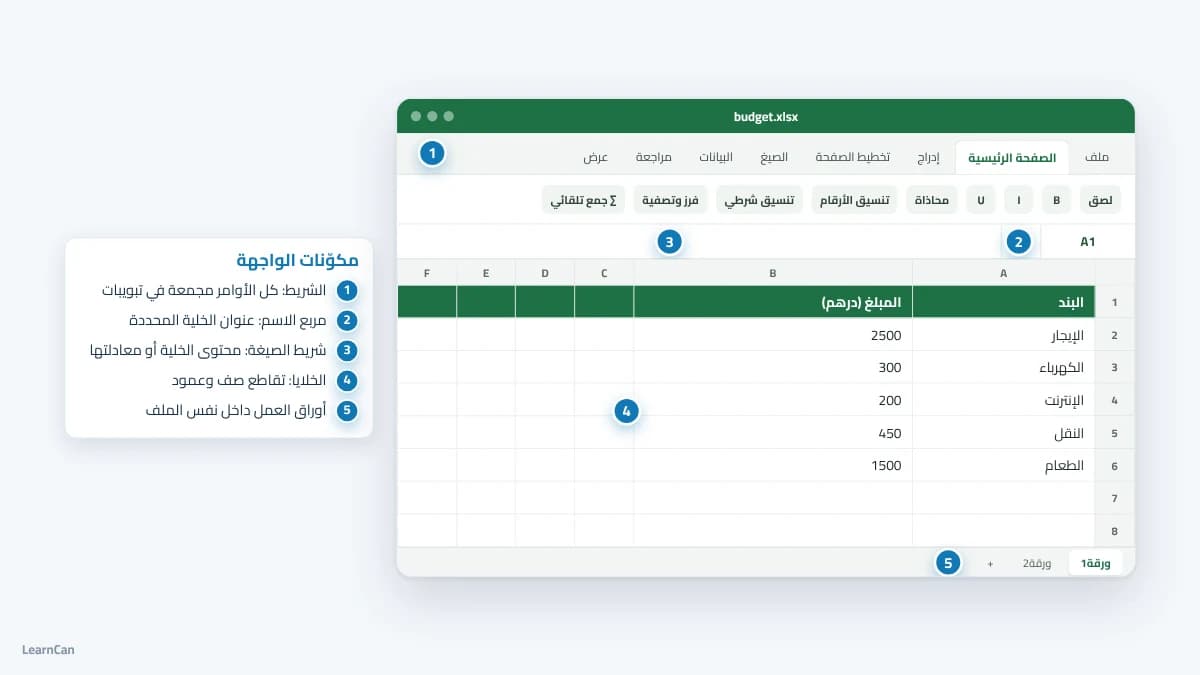
- The ribbon: groups commands into tabs such as “Home”, “Insert”, “Formulas” and “Data”.
- The Name Box: shows the address of the selected cell, such as A1 or B3.
- The formula bar: shows the content or formula of the cell and lets you edit it.
- Cells: each cell is where a column (letter) meets a row (number), so B3 sits in column B, row 3.
- Worksheets: the tabs at the bottom of the screen let you keep several tables in the same file.
Good to know: the screenshots in this guide show Excel in Arabic, with a right-to-left sheet, so column A appears on the far right. In English the sheet runs left to right, but the menus and formulas are exactly the same.
Step 2: enter data and format cells
Click cell A1 and type “Item”, then in B1 type “Amount”. Fill the next rows with your monthly expenses: rent, electricity, internet, transport and food. Press Enter to move down to the next cell, or Tab to move to the cell next to it.
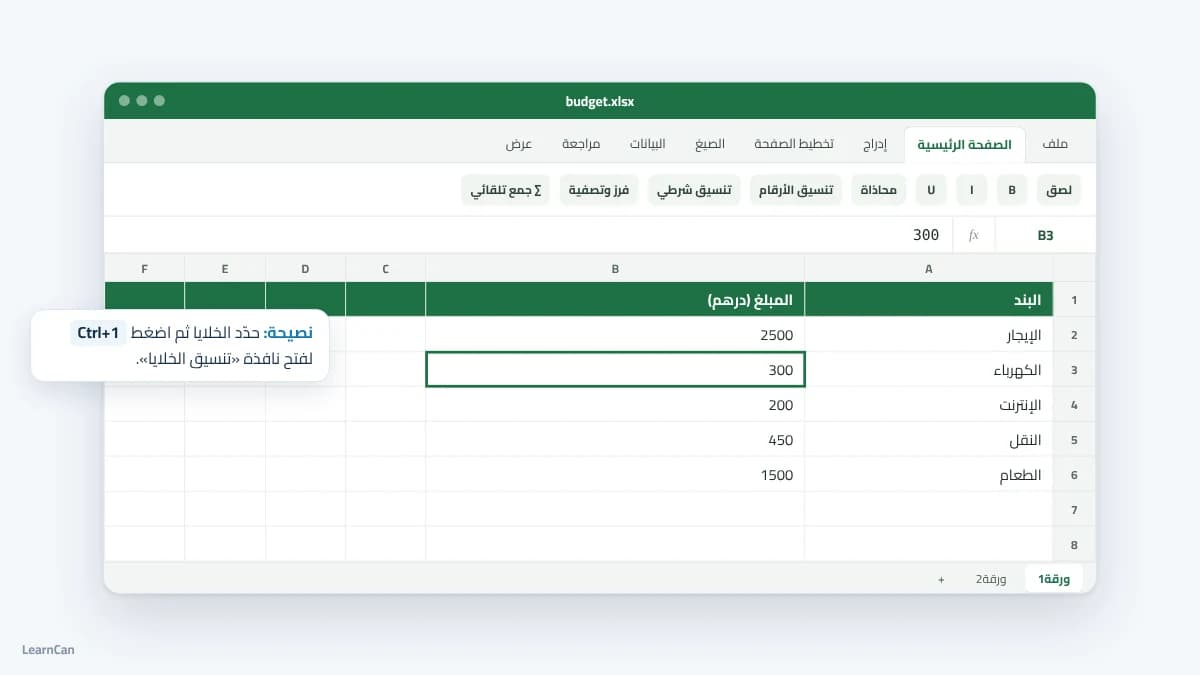
Once the data is in, select the header row, make it bold and give it a fill colour, then select the amount column and press Ctrl+1 to open “Format Cells” and pick the right number format. Formatting is not just decoration: a clear table means fewer reading mistakes and is easier to share.
Quick tip: turn the range into a structured table with Ctrl+T. Excel adds sort and filter buttons to the headers automatically, and formatting and formulas extend to every new row you add.
Step 3: write your first formula in Excel
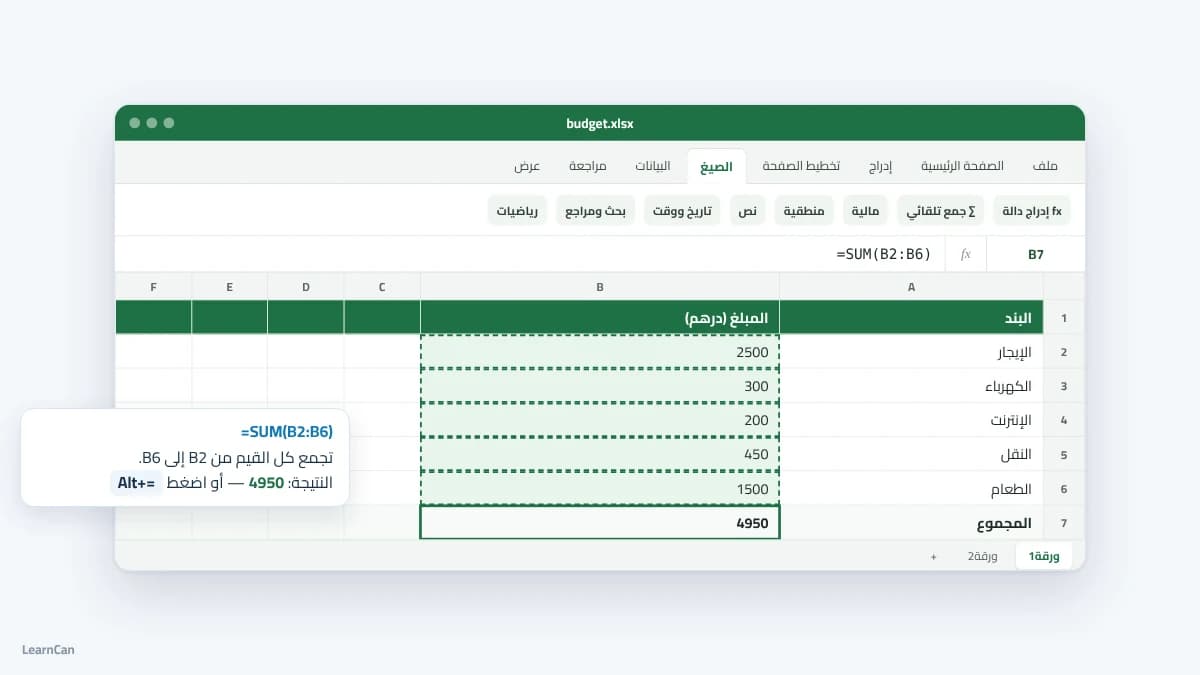
Every Excel formula starts with an equals sign. To total your expenses, click cell B7, type the following formula and press Enter:
=SUM(B2:B6)SUM adds every value from B2 to B6 and shows 4950. Even faster: select B7 and press Alt and = together, and Excel writes the function for you.
After SUM, these are the functions a beginner needs most. They are all written the same way: the equals sign, the function name, then the range in brackets.
Function | What it does |
|---|---|
SUM | Adds the values in a range of cells |
AVERAGE | Calculates the average |
MAX | Shows the largest value in the range |
MIN | Shows the smallest value in the range |
COUNT | Counts the cells that contain numbers |
IF | Tests a condition and shows one of two results |
An IF example: type the following formula in C2; it shows “High” if the amount is over 1000 and “Normal” otherwise:
=IF(B2>1000,"High","Normal")Note: depending on your computer’s regional settings, the separator between arguments may be a semicolon instead of a comma. If you get an error, try a semicolon.
Step 4: sort and filter
As the table grows, searching by eye becomes tiring. Click any cell inside the table, then on the “Data” tab choose “Filter”, and small arrows appear next to the headers. From the arrow on the amount column you can sort expenses from largest to smallest, or show only amounts above a given value, without deleting anything.
Step 5: create your first chart
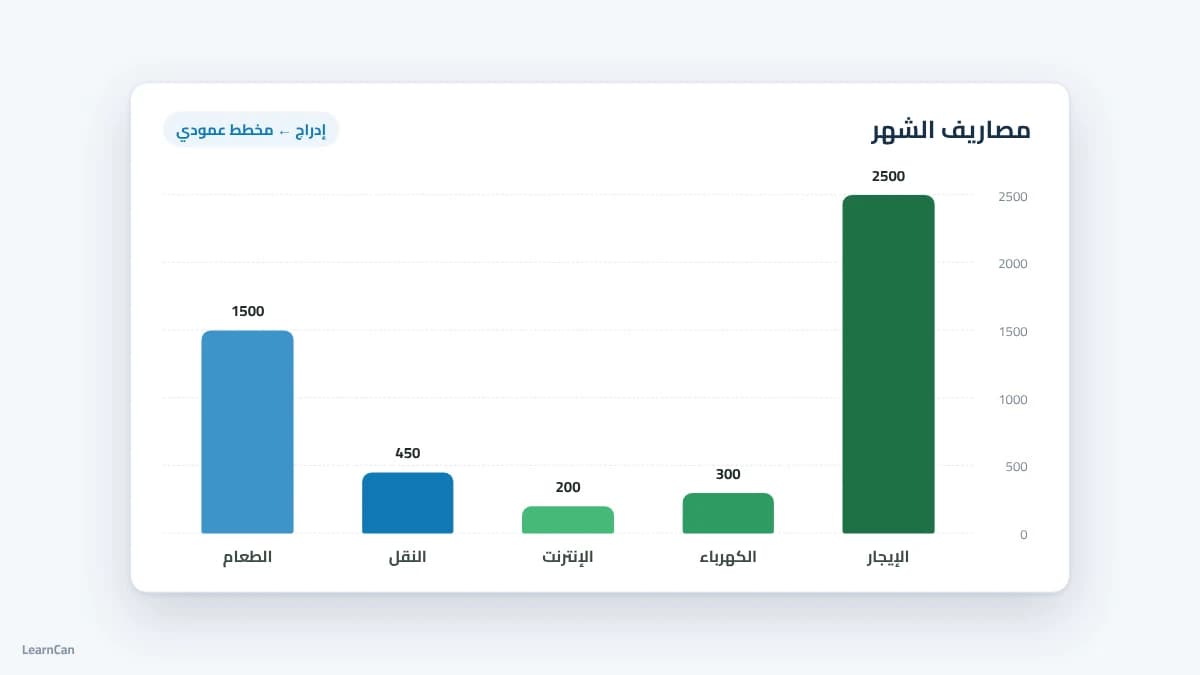
Select cells A1 to B6, then on the “Insert” tab choose “Recommended Charts” or the column chart directly. In seconds your table becomes a picture showing where most of your money goes: in our example, rent alone is almost half of the expenses.
The most useful Excel keyboard shortcuts
Shortcuts are not essential in your first week, but over time they are what sets a confident user apart. Start with this short list; you will find the full list on Microsoft’s official Excel shortcuts page.
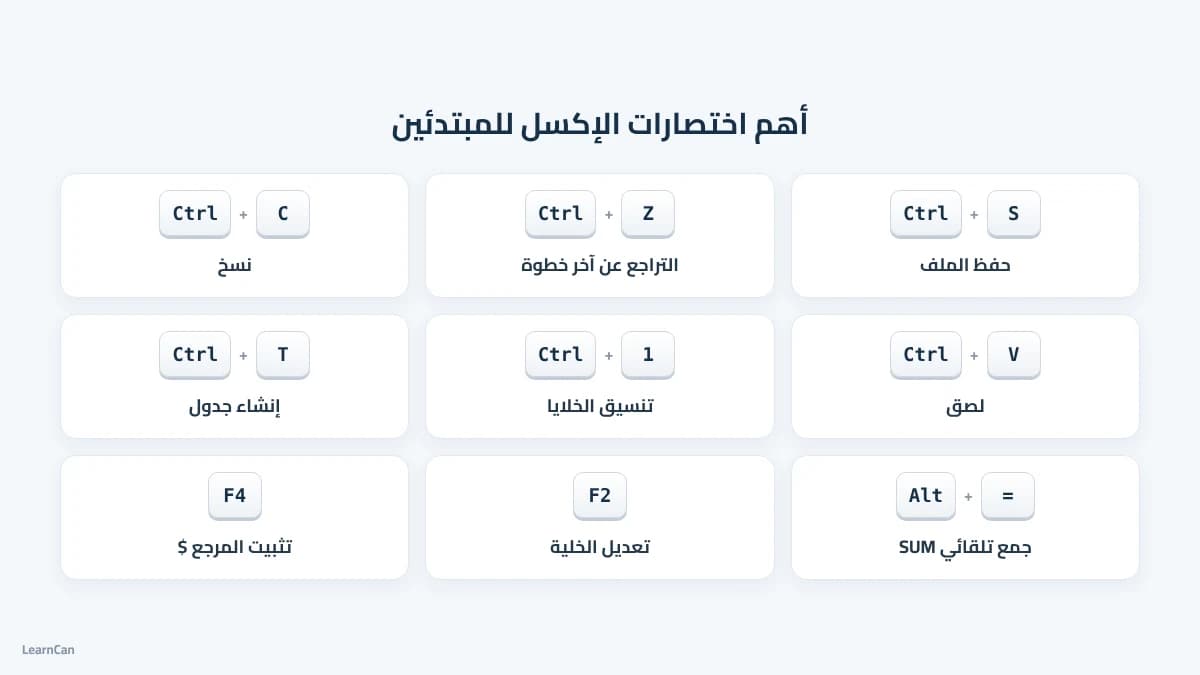
Shortcut | What it does |
|---|---|
Ctrl+S | Save the file |
Ctrl+Z | Undo the last action |
Ctrl+1 | Open “Format Cells” |
Ctrl+T | Turn the range into a structured table |
F2 | Edit the active cell |
F4 | Lock a cell reference in a formula |
Ctrl+Home | Go to the start of the sheet |
Common beginner mistakes
- Typing numbers as text: a number written with a space or a hand-typed currency symbol is left out of calculations.
- Merging too many cells: it looks nice but breaks sorting and filtering.
- Typing results by hand: if one number changes, every result becomes wrong; always use formulas.
- Forgetting to save: press Ctrl+S after every important step, or turn on AutoSave.
A 30-day plan to learn Excel for beginners
Consistency matters more than hours: half an hour a day on a real file is enough to feel comfortable within a month.
Period | What you learn |
|---|---|
Week 1 | The interface, data entry and formatting |
Week 2 | Basic formulas and references |
Week 3 | Sorting, filtering and structured tables |
Week 4 | Charts and a small complete project |
After that, move on to lookup functions: XLOOKUP finds a value in a table and returns the matching value. It is available in Microsoft 365, Excel 2021 and 2024, but not in 2016 or 2019. It is explained on Microsoft’s XLOOKUP function page.
Frequently asked questions about Excel
How long does it take to learn Excel?
Three to four weeks of short daily practice are enough to master the basics: data entry, formatting, common formulas and charts. Advanced skills such as pivot tables and data analysis come with practice on real projects.
Do I need to be good at maths?
No. Basic arithmetic is enough, because Excel does the calculating for you. What matters is understanding what you want to calculate and then choosing the right function.
Can I learn Excel for free?
Yes. Excel for the web is free with a Microsoft account and is enough to follow this whole guide. You can also keep learning with LearnCan courses.
Summary
That is the heart of how to learn Excel for beginners: you do not need to memorise hundreds of functions to use it well. Start with one table you actually need and apply the five steps in order: the interface, data entry, formulas, sorting, then charts. To keep going, browse the latest articles on LearnCan and pick your next topic.