LearnCan Sign Up: How to Create Your Account (2026 Guide)
LearnCan sign up step by step with real screenshots: the Sign Up button, the form, phone and Google sign-up, plus quick fixes for common sign-up problems.
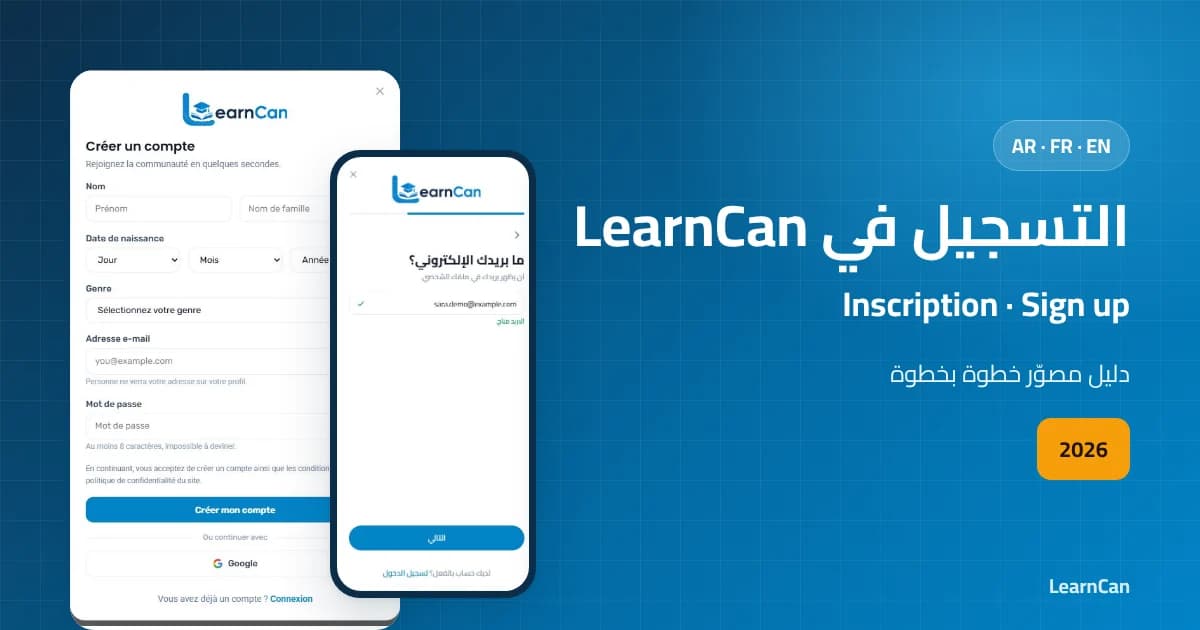
Want to follow courses, comment on articles and post on the community wall? It all starts with one step: the LearnCan sign up. This illustrated guide shows you how to create your account step by step, with real screenshots of the site, what changes on a phone, and how to fix the most common problems. The whole process takes less than two minutes.
What is LearnCan and why create an account?
LearnCan is a learning platform and a trilingual community (Arabic, French and English) that brings together courses, practical articles and a social wall where members share their experience. You can read articles without an account, but a free account lets you comment, post, follow members and message them.
- Comment on articles and ask the author and other readers your questions.
- Post on the community wall and share what you are learning.
- Follow members and message them to build your own network.
- Follow courses and pick them up again from your phone or computer.
What you need before you start
- A valid email address you can access; it is never shown on your profile.
- You must be at least 13, the minimum age required by the site.
- A password of at least 8 characters that is hard to guess.
- Or a Google account if you prefer a one-click sign-up.
LearnCan sign up on a computer: step by step
Step 1: open the home page and click the “Sign Up” button in the top-right corner. It is available on every page of the site, and you can also open the sign-up form directly.

Step 2: the “Create an account” window opens. Fill in the fields in the order shown in the picture:
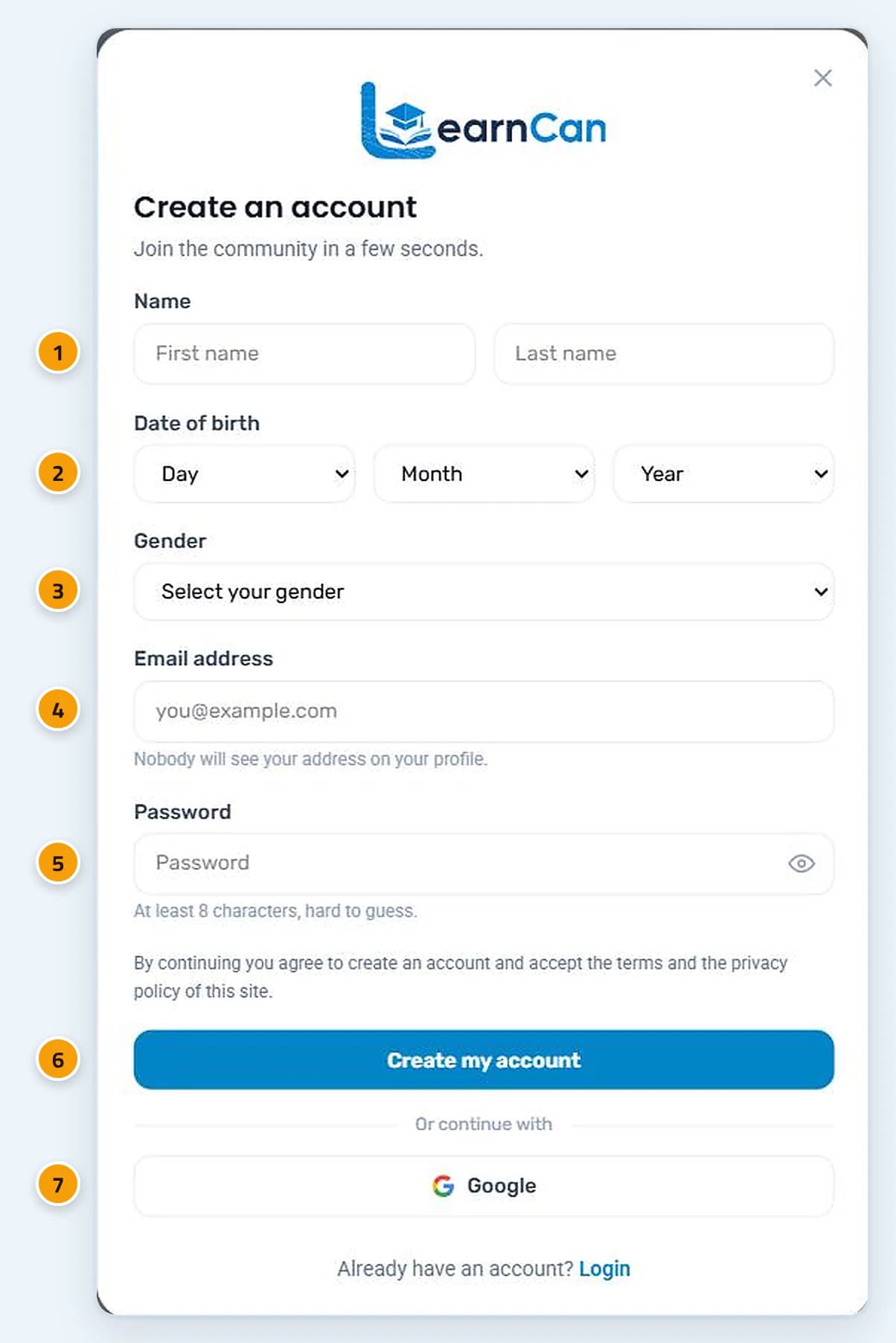
- Name: your first and last name, the way people know you.
- Date of birth: pick the day, month and year from the lists.
- Gender: female, male, or “More options” if you prefer not to say.
- Email address: the site checks right away that it is not already in use.
- Password: at least 8 characters; the eye icon lets you show it to double-check.
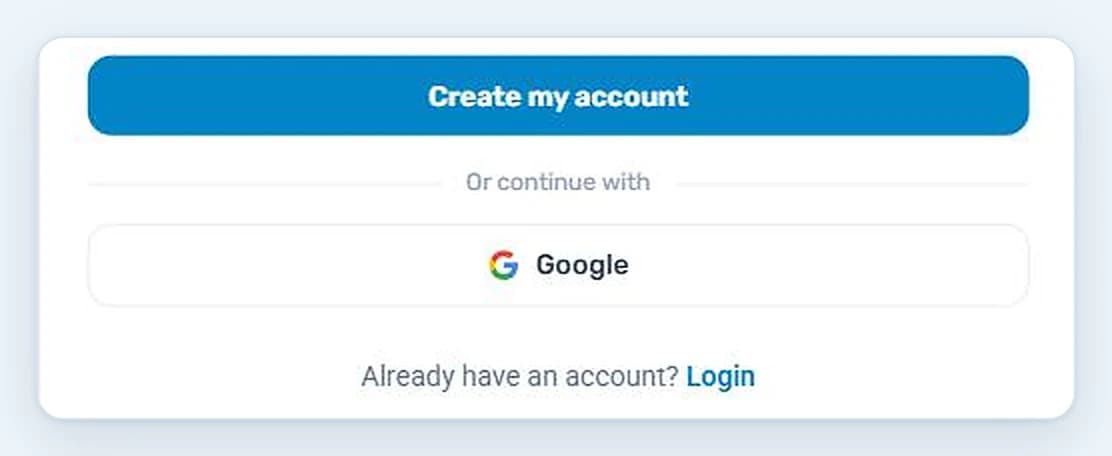
Step 3: read the line about the terms, then click “Create my account”. You can review the terms of use and the privacy policy before you confirm.
How do I sign up for LearnCan on my phone?
On a phone, the site asks for exactly the same information, but one question per screen, with a progress bar at the top and a “Next” button to move on. You start with your name, then your date of birth and gender, then your email address, which shows “Address available” once it is valid. After that you create your password, and the last screen asks you to accept the terms: tap “I agree” to create your account. If you go back to change an answer, the arrow at the top of each screen returns to the previous question without losing what you typed.
Sign up with your Google account
If you have a Google account, click the Google button under “Or continue with”, then choose your account. This way you don’t have to create a new password. No Google account yet? Follow Google’s official guide to creating an account.
What happens after you create your account?
Usually the site signs you in automatically and takes you to the community wall. If a message asks you to confirm your email address, open your inbox and click the link you received, and remember to check your spam folder. Then complete your profile with a photo and a short bio, and start following members whose topics interest you.
Fixing common sign-up problems
Message or problem | Fix |
|---|---|
Email address already in use | Log in with it, or use “Forgot password?” in the login window |
You must be at least 13 years old | Sign-up is only open to people aged 13 and over |
Password too short | Choose at least 8 characters |
Network error | Check your internet connection and try again |
No confirmation email | Check your spam folder and wait a few minutes |
Tips to keep your account safe
- Use a long passphrase instead of a short word, and never reuse it on other sites.
- Store it in a password manager, as recommended by CISA’s advice on strong passwords.
- Never share your login details, even with someone claiming to be from the team.
- On a shared device, leave “Remember me” unchecked and log out when you are done.
LearnCan sign up FAQ
Is it free to sign up for LearnCan?
Yes. Creating an account is free and no payment method is required: an email address and a password, or a Google account, are enough.
Will other members see my email address?
No. It is only used to log in and recover your account; it never appears on your profile.
Can I change the site language?
Yes. Pick Arabic, French or English from the language menu at the top of the page, and the sign-up window appears in the same language.
Summary
The LearnCan sign up takes less than two minutes: the “Sign Up” button, then your name, date of birth, gender, email and password, and finally the terms. Then explore the courses and the latest articles.