Canva Pro Giveaway: How to Enter on LearnCan
How to enter the LearnCan Canva Pro giveaway: fill in a 3-field form (first name, last name, email) and get your access by email once it has been checked.

Want to try your luck? Entering the LearnCan Canva Pro giveaway is very simple: a three-field form, and that’s it. No subscription, no payment, nothing to do on social media. In this illustrated guide we show you how to fill in the form, how entries are checked and how you receive your Canva Pro access by email.
What is the LearnCan Canva Pro giveaway?
It is a free giveaway run by LearnCan for its community. To enter, you simply fill in a form with your first name, your last name and your email address. Every entry is checked by the team, then Canva Pro access is sent to the address you gave, completely free of charge.
Canva is a popular online design tool for creating visuals, presentations and videos (about Canva). The Pro plan adds advanced features, described on the official Canva Pro page. Important: LearnCan is not affiliated with or sponsored by Canva.
The only condition to enter
There is just one condition: fill in the form correctly. Three pieces of information are requested, nothing more:
- Your first name.
- Your last name.
- Your email address, the one where you want to receive Canva Pro access.
Only one entry is accepted per email address, and temporary email addresses are refused automatically. You have nothing to post, nothing to share and no account to create.
Step 1: open the giveaway page
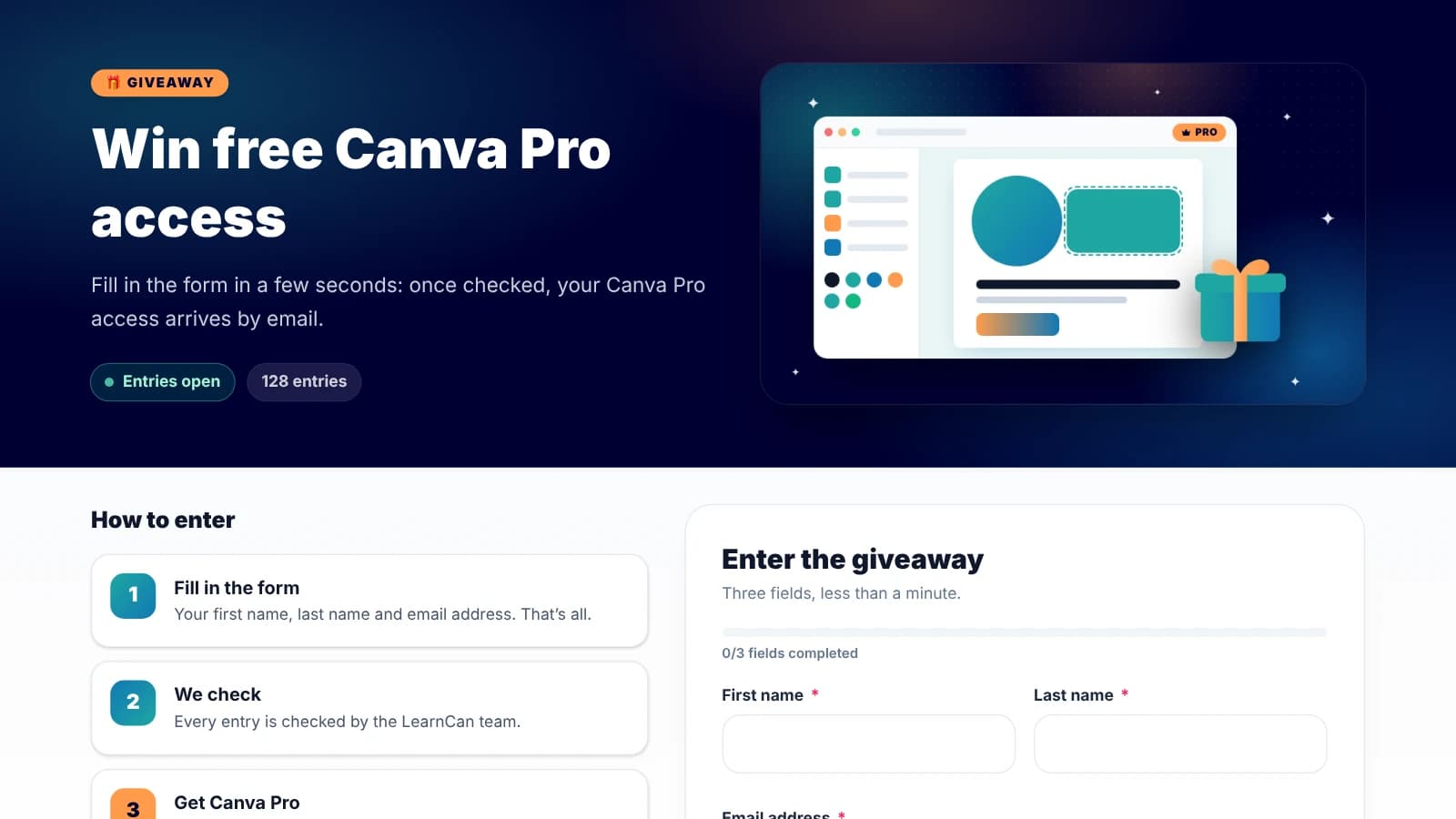
Go to the giveaway entry page. At the top, a banner shows whether entries are open. Just below, three steps sum up how it works, and the form sits next to them (or just below on a phone).
Step 2: fill in the form
The form guides you live: a progress bar fills up with each valid field, a green tick appears in the field, and a clear message is shown if something is missing or if the email address is mistyped.
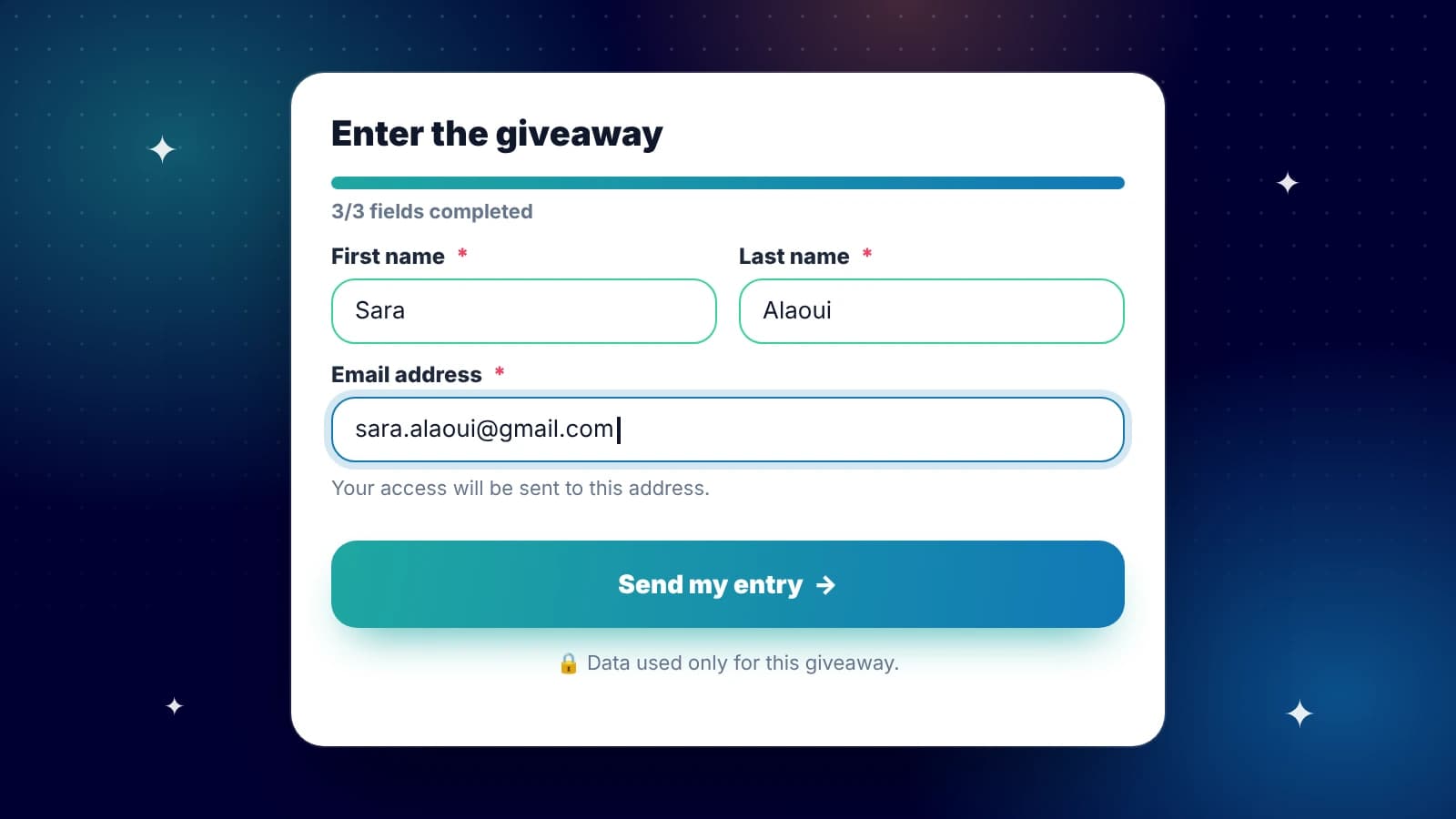
- First and last name: write them in full, without nicknames, so we can identify you easily.
- Email address: double-check it. One extra letter and your access will not reach you.
- Send button: tap “Send my entry”. If a field is wrong, the form tells you right away.
Step 3: the confirmation
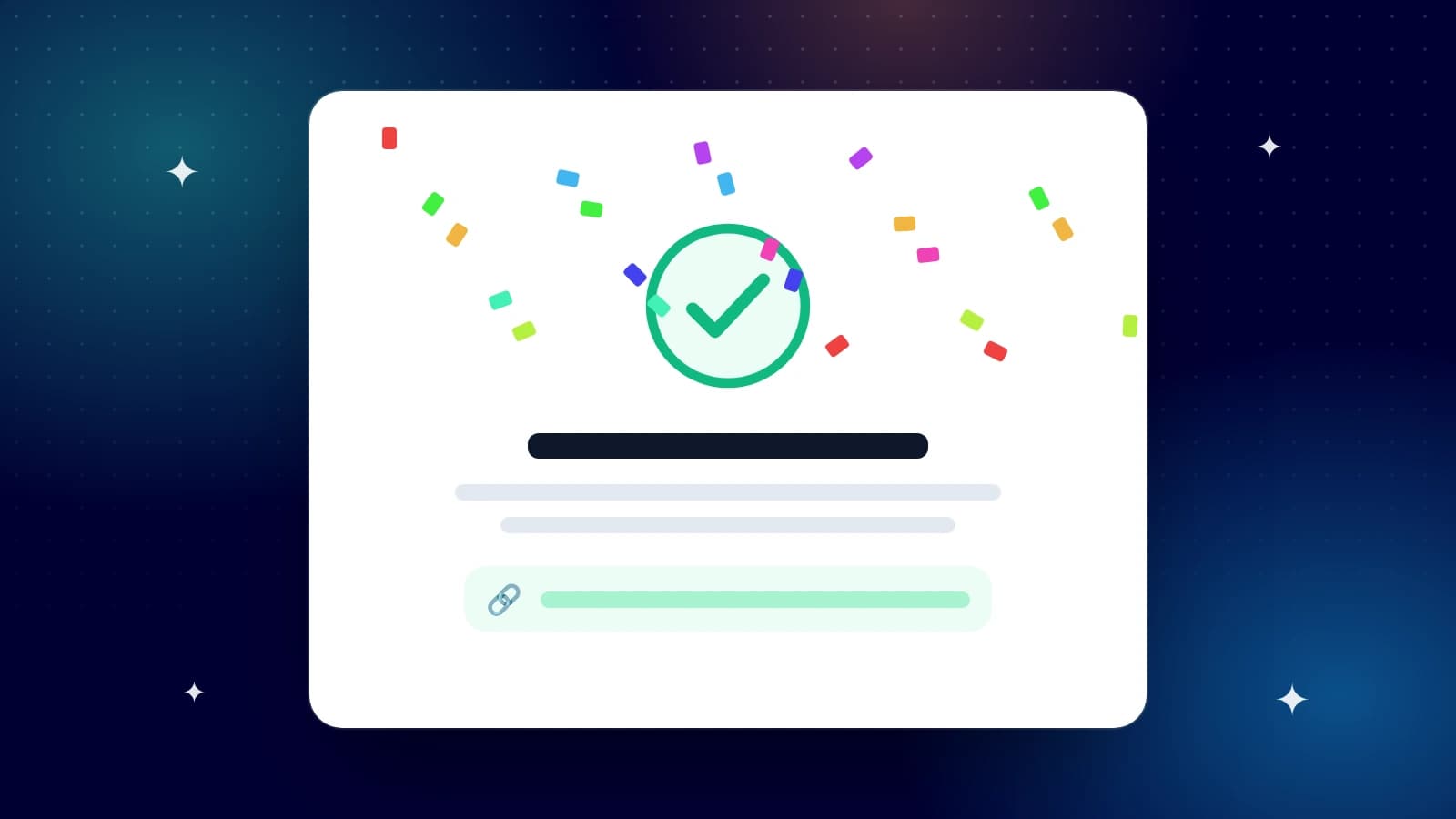
As soon as you send it, a confirmation animation appears: your entry is saved. If you try to enter a second time with the same address, the form tells you that you have already entered.
How does the check work?
Every entry is checked by the LearnCan team before access is sent. We make sure the information is complete and that the email address is valid, then your entry goes through these stages:
Status | What it means |
|---|---|
To check | Your form was received and is waiting to be checked. |
Approved | Your information is complete and valid. |
Access sent | Your Canva Pro access was sent to your email. |
Refused | Some information is invalid (wrong email, duplicate…). |
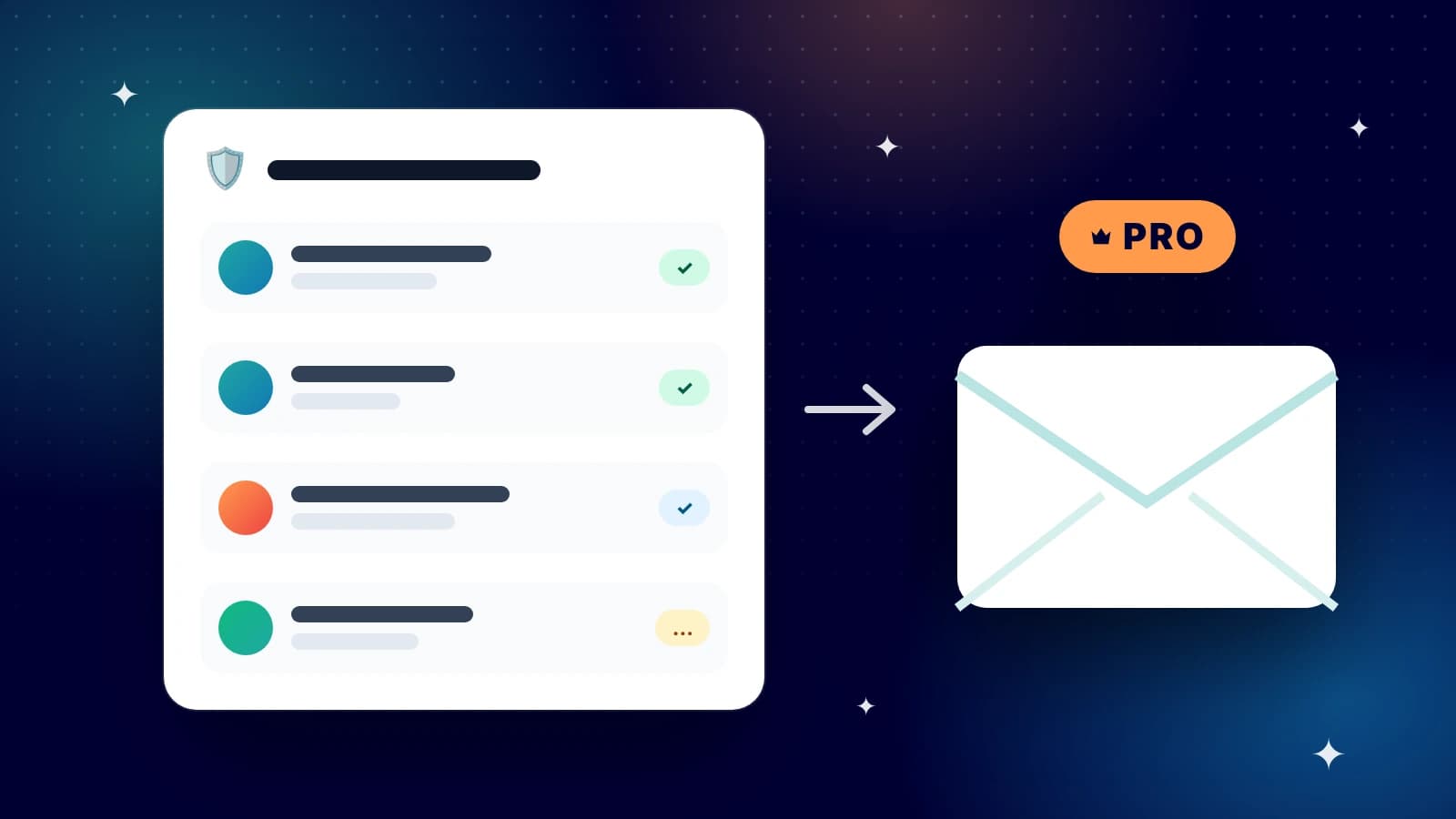
Keep an eye on your inbox, and also on your spam folder: invitations sometimes land there.
What Canva Pro gives you
- Premium templates and elements for your posts, posters and presentations.
- One-click background removal on your photos.
- Resizing a design for several formats.
- A brand kit to keep your colours, fonts and logos in one place.
- Content planning and more storage space.
To learn each feature step by step, the Canva help centre offers detailed guides.
Getting started with Canva Pro
Once you receive your access, don’t try to learn everything at once. Here is a simple path for your first days:
- Day 1: create your brand kit (two or three colours, one font for headings, one for body text).
- Day 2: pick a premium template and adapt it to a real need (a poster, a post, a YouTube thumbnail).
- Day 3: try background removal and resizing on that same design.
- Then: share your creations with the LearnCan community to get feedback.
Tips to get your entry approved
- Use an email address you actually check.
- Write your full first and last name.
- Send only one entry: duplicates are deleted.
- Beware of fake messages: LearnCan will never ask for your password or a payment.
Frequently asked questions about the Canva Pro giveaway
Is the giveaway really free? Yes. No payment and no bank card are ever requested, neither on LearnCan nor by email.
Do I need to share or comment on a post? No. The only condition is filling in the form: first name, last name and email.
How long does the check take? Entries are handled as they come in, in order of arrival. The status moves from “To check” to “Access sent”.
Can I enter more than once? No, one entry per email address.
What happens when the giveaway ends? The form shows “Giveaway ended” and no longer accepts new entries.
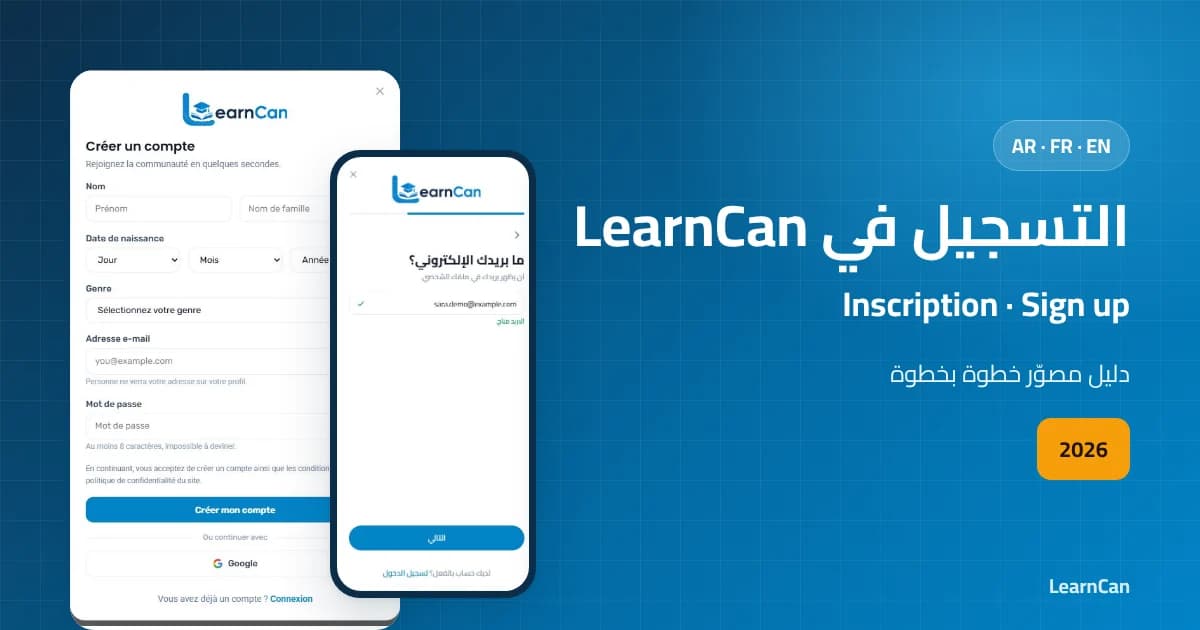
Do I need a LearnCan account? You do not need one to enter, but it is free and useful: follow our LearnCan sign-up guide and discover all the free features of the platform.
Ready? Fill in the entry form in less than a minute. Good luck, everyone!